
本文根據 Claude Code 官方文檔《Troubleshoot installation and login》《Troubleshooting》整理,資料核對於 2026-11-05。配圖為本站整理的示意圖,不是介面截圖。本站(bigolab.com)不是 Anthropic 官方網站。
適用於誰
- 搜「claude code 安裝卡住」「claude code 安裝失敗」,安裝命令跑到一半不動或報錯的人;
- 安裝一直很慢,不知道是網絡問題還是別的問題的人;
- 裝完提示
command not found,或者 Windows 上命令一執行就報錯的人。
官方沒有單獨寫一節「安裝很慢」。下面按官方對「下載中斷」「超時」「內存不足」等情況的通用排查來歸類,原文用的是英文報錯,本文保留原文。
結論先說
- 第一步永遠是測下載伺服器:安裝器從
downloads.claude.ai下載。macOS 和 Linux 運行curl -sI https://downloads.claude.ai/claude-code-releases/latest;Windows PowerShell 要寫成curl.exe -sI ...(PowerShell 裏的curl是Invoke-WebRequest的別名,不認-sI)。第一行是200就說明連上了。 - 下載中斷官方會自動重試:最多 3 次,仍失敗會提示
The connection dropped while downloading the update,一般再運行一遍claude update就好;下載超過 10 分鐘沒完成,報Download timed out: exceeded the total deadline,這一類官方不會自動重試。 - Linux 小內存伺服器上出現
Killed,多半是內存不足:官方說安裝需要約 512 MB 空閒內存,運行 Claude Code 需要更多,至少 4 GB 內存。 - Windows 上先看你用的是 PowerShell 還是 CMD,用錯命令是最常見的原因。
- 裝完
command not found是 PATH 問題,不是沒裝上,把安裝目錄加進 PATH 並開一個新終端。

圖:本站根據 Claude Code 官方文檔:Troubleshoot installation and login 整理的示意圖
一、先測網絡
返回結果的含義,官方寫得很清楚:
- 第一行是
200:連上了; 403:通常是代理或網絡過濾攔截了這個域名,或者 Claude Code 在你所在的國家不可用(官方有支持國家和地區名單,見 /guides/claude-supported-countries-regions);5xx:多半是服務暫時有問題,等幾分鐘再試,狀態頁怎麼看見 /guides/claude-down-check-status-page;- 沒有輸出、
Could not resolve host、連接超時:說明網絡把這個連接攔了。常見原因是公司防火牆或代理攔截了downloads.claude.ai,或者 TLS/SSL 的問題(更新系統 CA 證書,或檢查有沒有配HTTPS_PROXY)。
如果你在公司網絡裏,需要代理,官方的做法是在安裝前設定 HTTP_PROXY 和 HTTPS_PROXY,再運行安裝命令:
bash
export HTTP_PROXY=http://proxy.example.com:8080
export HTTPS_PROXY=http://proxy.example.com:8080
curl -fsSL https://claude.ai/install.sh | bash
Windows PowerShell 對應的是 $env:HTTPS_PROXY = '...',再運行 irm https://claude.ai/install.ps1 | iex。代理地址問你們的 IT 要。
二、下載卡住或中途斷開
curl: (56)或curl: (23) Failure writing output to destination:Bash 沒收到完整腳本。56 表示下載本身被中斷,23 表示 curl 寫不進管道(通常是 Bash 提前退出了)。官方建議先測連通性,若能連上,多半是偶發,重試即可;也可以換一種安裝方式(macOS 用brew install --cask claude-code,Windows 用winget install Anthropic.ClaudeCode)。這兩種方式裝出來的版本預設不會自動更新,更新見 /guides/claude-code-update-uninstall。The connection dropped while downloading the update:連接在下載時被關閉,重試三次都沒成功。官方說長時間傳輸可能被代理或網關截斷,建議再運行claude update,必要時設HTTPS_PROXY,企業網絡要讓網絡團隊放行downloads.claude.ai的完整下載。Release verification failed for Claude Code:Claude Code 沒法確認要安裝的版本是可信的,所以什麼都沒裝,舊版本繼續可用。官方讓你按括號裏的原因處理:以sidecar_fetch_開頭的,原命令再運行一次;其他原因稍後再試。反覆出現可以反饋給官方。- 紅色的
Auto-update failed · Run claude doctor:後台自動更新沒裝上,可以繼續工作。官方說claude doctor只給日期不給原因,想真正完成更新要在 shell 裏運行claude update,看它報的具體錯誤。 claude update或claude doctor卡在Checking for updates沒輸出:官方說這兩條命令會掃描~/.zshrc、~/.bashrc等 shell 配置文件找過時的claude別名,如果其中某個路徑是目錄,舊版本會卡住。更新到 v2.1.214 或更新版本即可;舊版本上卡住時,用ls -ld找到那個目錄挪開,或重跑安裝腳本。
三、Linux 和 Docker 上的卡住
Killed 或 Installation was killed before it could finish (exit code 137):官方說退出碼 137 在 Linux 上是 SIGKILL,小內存機器上通常是內核的 OOM(內存不足)殺掉了安裝。官方給的辦法:
- 加 swap。官方示例是創建 2 GB 的 swap 文件:
sudo fallocate -l 2G /swapfile,sudo chmod 600 /swapfile,sudo mkswap /swapfile,sudo swapon /swapfile,然後重新安裝; - 關掉其他進程騰內存;
- 能的話換大一點的機器。
Docker 裏裝到一半不動:官方說在 Docker 裏以 root 在 / 下安裝可能卡住,因為從 / 運行時安裝器會掃描整個文件系統,佔用大量內存。解決辦法是先設定工作目錄:
dockerfile
WORKDIR /tmp
RUN curl -fsSL https://claude.ai/install.sh | bash
用 Docker Desktop 的話,構建容器共用虛擬機的內存,可以在 Settings > Resources 裏調高內存上限後重新構建。
四、Windows 上的幾類問題
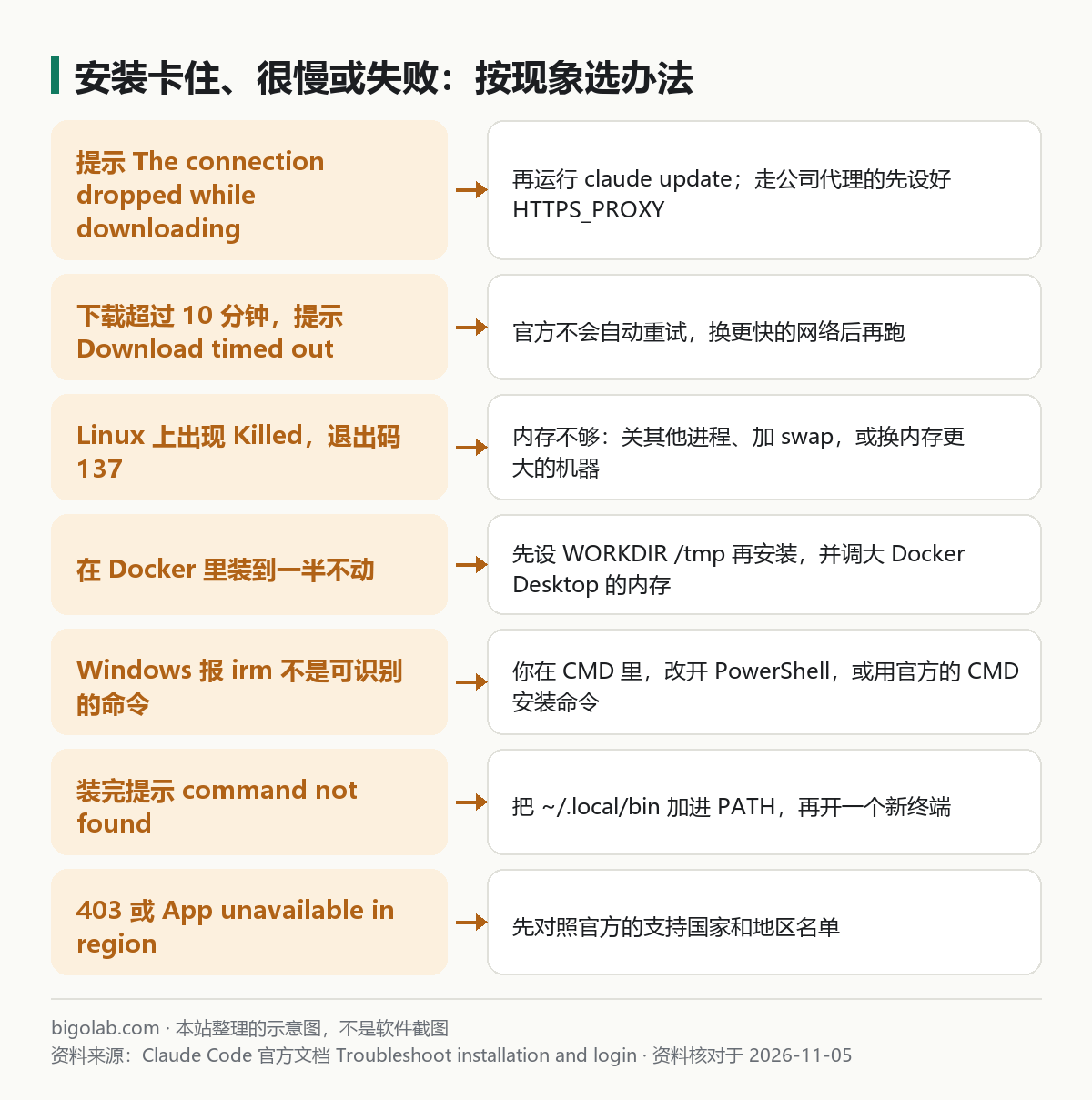
圖:本站根據 Claude Code 官方文檔:Troubleshoot installation and login 整理的示意圖
'irm' is not recognized、The token '&&' is not a valid statement separator、A parameter cannot be found that matches parameter name 'fsSL'、'bash' is not recognized:官方說這是你複製了另一個系統或另一個 shell 的安裝命令。在 PowerShell 裏用irm https://claude.ai/install.ps1 | iex;在 CMD 裏用curl -fsSL https://claude.ai/install.cmd -o install.cmd && install.cmd && del install.cmd。命令只複製了一半(只下載沒執行)也會出現「打印一堆腳本但什麼都沒裝」。The process cannot access the file ... because it is being used by another process:安裝器沒法寫%USERPROFILE%\.claude\downloads,通常是上一次安裝還在跑,或殺毒軟件在掃描沒下完的文件。關掉其他安裝窗口、等殺毒掃描結束,刪掉downloads文件夾再裝一遍。Claude Code does not support 32-bit Windows:官方說開始選單裏有Windows PowerShell和Windows PowerShell (x86)兩個入口,後者是 32 位進程,在 64 位機器上也會報這個錯,要開前者。Claude Code on Windows requires either Git for Windows (for bash) or PowerShell:官方說 Git for Windows 是可選的,Git Bash 不在時 Claude Code 用 PowerShell 工具,這個報錯說明兩者都沒找到。可以裝 Git for Windows(安裝時選 Add to PATH),或把 PowerShell 的目錄加進 PATH。Git 的完整說明見 /guides/claude-code-install-methods-git-npm-official。running scripts is disabled on this system:這是用 npm 安裝時,PowerShell 的執行策略攔了.ps1啟動腳本。官方的辦法:Set-ExecutionPolicy -ExecutionPolicy RemoteSigned -Scope CurrentUser,或改用.cmd啟動器,或直接用 PowerShell 安裝器。
五、裝完提示 command not found
官方說這表示安裝目錄不在 PATH 裏:安裝器把 claude 放在 macOS/Linux 的 ~/.local/bin/claude 或 Windows 的 %USERPROFILE%\.local\bin\claude.exe。檢查和加 PATH 的命令在官方「Verify your PATH」一節,按你的系統選。加完要開一個新終端。其他常見報錯對照見 /guides/claude-code-common-errors。
裝好之後
裝好並用 claude 登入後,是用訂閱登入還是 API 計費,可以先看 /guides/claude-code-pro-max-or-api;需要訂閱的可以了解 /chongzhi/claude-code。第一次怎麼用見 /guides/claude-code-getting-started。
常見問題
Q:安裝很慢,怎麼加速?
官方沒有提供「加速」選項。它的做法是下載失敗時自動重試,總下載時限 10 分鐘。官方沒有解釋「慢」的原因;先用第一節的命令測一下到 downloads.claude.ai 的連通情況,再按報錯歸類處理。
Q:能不能先裝個圖形介面的?
官方的排查頁提到,不想用終端的話,可以用 Claude Code 桌面版,通過圖形介面安裝和使用,介紹見 /guides/claude-code-desktop。
Q:官方的 claude doctor 是幹什麼的?
官方說 claude doctor 是在 shell 裏運行的安裝診斷;能進入 Claude Code 之後,用 /doctor 做安裝、設定、擴展和上下文使用的檢查,並給出可在你確認後應用的修復。
相關教學
- /guides/claude-code-install-methods-git-npm-official:四種安裝方式怎麼選
- /guides/claude-code-update-uninstall:更新和卸載
參考資料
- Claude Code 官方文檔:Troubleshoot installation and login — https://code.claude.com/docs/en/troubleshoot-install
- Claude Code 官方文檔:Troubleshooting — https://code.claude.com/docs/en/troubleshooting
0 條評論
還沒有評論,來搶沙發~