
本文根據 GitHub 官方文檔《Installing the GitHub Copilot extension in your environment》(JetBrains 部分)和《Using agent mode in your IDE》整理,資料核對於 2026-10-11。
適用於誰
- 用 IntelliJ IDEA、PyCharm、WebStorm、GoLand 等 JetBrains IDE,不想換編輯器的人;
- 搜「idea 安裝 github copilot」「github copilot idea 使用」「github copilot idea agent mode」的人。
結論先說
- 在 IDE 的 Plugins → Marketplace 裏搜 GitHub Copilot 安裝,重啟 IDE。
- 登入入口:Tools → GitHub Copilot → Login to GitHub,用裝置碼在瀏覽器裏授權。
- JetBrains 裏同樣有 Chat 和 Agent 模式:點 Copilot 圖標打開聊天面板,在頂部切到 Agent 標籤。
- 聊天和 Agent 消耗 AI credits;官方建議 JetBrains 插件版本不低於 1.9.1,否則用量資訊可能顯示不準。
- 沒有 Copilot 訂閱可以先用 Copilot Free。
支持哪些 IDE
官方列出的兼容名單:IntelliJ IDEA(Ultimate、Community、Educational)、Android Studio、CLion、DataGrip、DataSpell、GoLand、MPS、PhpStorm、PyCharm(Professional、Community、Educational)、Rider、RubyMine、RustRover、WebStorm,以及 Code With Me Guest 和 JetBrains Client。
具體到「哪個插件版本配哪個 IDE 版本」,官方讓你看 JetBrains Marketplace 上 GitHub Copilot 插件的 Versions 頁。IDE 太舊時,Marketplace 裏會搜不到或提示不兼容,先升級 IDE。
步驟一:安裝插件
- 確認帳號能用 Copilot(付費訂閱、組織分配的席位,或 Copilot Free);
- 打開 IDE 的設定,進入 Plugins,在 Marketplace 裏搜尋
GitHub Copilot,點 Install; - 安裝完成後點 Restart IDE。
官方文檔順帶說明:這個插件的許可方是 GitHub 而不是 JetBrains,使用即表示同意 GitHub 的附加產品條款。
步驟二:登入 GitHub
- 重啟後點選單 Tools → GitHub Copilot → Login to GitHub;
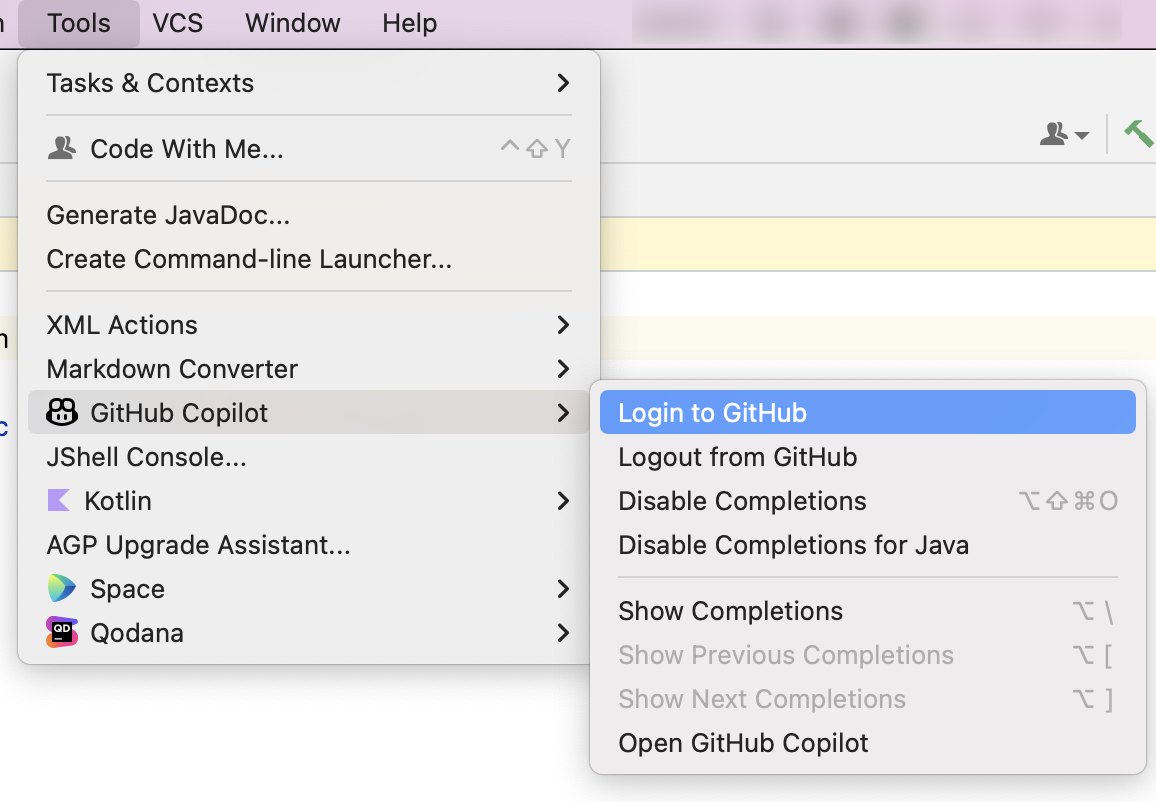
圖片來源:GitHub 官方文檔《Installing the GitHub Copilot extension in your environment》
- 在彈出的 Sign in to GitHub 對話框裏點 Copy and Open——它會複製一串裝置碼並打開瀏覽器;
- 瀏覽器裏如果要求登入,就登入你的 GitHub 帳號;
- 粘貼裝置碼,點 Continue;
- 在權限確認頁點 Authorize GitHub Copilot Plugin;
- 回到 IDE,看到確認提示後點 OK。
公司用 GHE.com 託管帳號的,登入前要先改一項設定,見官方的《Using GitHub Copilot with an account on GHE.com》。
步驟三:補全、Chat 與 Agent
補全:正常寫代碼即可,灰色建議出現後按 Tab 接受。從上圖的選單能看到,Tools → GitHub Copilot 裏可以對全部語言或當前語言停用補全(Disable Completions / Disable Completions for 某語言)。
Chat:在側邊欄或選單裏找到 Copilot Chat,直接提問。它能看到你當前打開的文件。
Agent 模式:
- 點 Copilot 圖標打開聊天面板;
- 在面板頂部點 Agent 標籤;
- 輸入任務。Copilot 會在編輯器裏流式給出修改、更新工作集,必要時建議終端命令;
- 查看修改;對它建議的命令逐條確認是否允許運行,之後它會繼續迭代直到完成。
官方說 Agent 模式最適合三種情況:任務複雜、包含多步和報錯處理;你希望由 Copilot 自己決定步驟;任務需要接外部系統(比如 MCP 伺服器)。任務大或需求模糊時,官方建議先用 Plan 模式起草實施方案。
Agent 工作過程中可以繼續發消息改變方向,也可以拒絕它提出的某條命令。
進階:換模型、接 MCP、項目指令
- 換模型 / 自定義 Agent:提交任務前可以在聊天面板裏切換模型,或選擇為某類工作定製的 custom agent。Free 和 Student 檔只能用自動選模型。
- MCP:Agent 的能力很大一部分來自工具,可以通過 MCP 伺服器擴展,GitHub 官方提供了 GitHub MCP Server 用來在編輯器裏操作 GitHub。
- 項目指令:倉庫裏的
.github/copilot-instructions.md會自動帶進請求,見《copilot-instructions.md 怎麼寫》。
常見問題
Q:聊天面板裏沒有 Agent 標籤?
先升級插件到最新版;如果是公司帳號,可能是管理員在策略裏關閉了 Agent 模式。
Q:登入時瀏覽器打不開或裝置碼過期?
重新點一次 Login to GitHub 獲取新碼;公司網絡攔截 github.com 的裝置授權頁時需要找 IT 放行。
Q:一定要裝這個插件嗎?
不一定。官方說明插件提供完整的 Copilot 體驗,但也可以通過 JetBrains AI Assistant 或 Copilot CLI 使用 Copilot,各入口的能力差別見官方《GitHub Copilot in IDEs》。命令行用法見《GitHub Copilot CLI 安裝與使用》。
Q:會不會很耗額度?
官方說明 Agent 模式下每條提示都消耗 AI credits,長對話、跨大量文件的任務消耗更多;補全在付費檔不計 credits。詳見《GitHub Copilot 免費版與 Pro 區別》。
參考資料
- Installing the GitHub Copilot extension in your environment(GitHub 官方,JetBrains 標籤頁):https://docs.github.com/en/copilot/how-tos/copilot-in-your-ide/set-up-copilot/install-copilot-extension
- Using agent mode in your IDE(GitHub 官方):https://docs.github.com/en/copilot/how-tos/copilot-in-your-ide/use-copilot-agents/use-agent-mode
- Quickstart for using GitHub Copilot in your IDE(GitHub 官方):https://docs.github.com/en/copilot/get-started/quickstart-for-using-github-copilot-in-your-ide
- GitHub Copilot 插件頁(JetBrains Marketplace):https://plugins.jetbrains.com/plugin/17718-github-copilot
0 條評論
還沒有評論,來搶沙發~